- migration
- whatsapp business
- API
- upgrade
How to migrate from WhatsApp Business app to the API (complete guide)
Step-by-step guide to migrating from the free WhatsApp Business app to the API. What you keep, what changes, and how to prepare your team for the switch.

Contents
You started with the free WhatsApp Business app. It was fine when it was just you responding to customers. Maybe you added WhatsApp Web so two people could share the load. Then you hired a third person, and a fourth, and now nobody knows who replied to what. Messages fall through the cracks. Customers complain they never got a response. You can’t measure anything.
The WhatsApp Business app has a ceiling, and you just hit it. The next step is the WhatsApp Business API. Despite what it sounds like, migrating is not a major engineering project. For most businesses, it takes less than a week from decision to fully operational.
Table of contents
- Signs you have outgrown the app
- What the WhatsApp Business API actually is
- What you keep when you migrate
- What changes after migration
- The migration process step by step
- Cloud API vs On-Premise
- Common fears addressed
- Realistic timeline
- FAQ
Signs you have outgrown the app
There is no magic number that triggers the switch. But patterns emerge. If two or more of these sound familiar, you are probably leaving money on the table by staying on the app.
Multiple people need to respond from the same number. The app supports up to four linked devices, but there is no queue, no assignment, no way to track ownership of a conversation.
Your volume exceeds 30-50 conversations per day. At that point, without proper tooling, response times start climbing and messages get missed.
You want to automate. Welcome messages, FAQ bots, payment reminders, appointment confirmations. The app gives you “quick replies” (saved text snippets) and nothing more.
You need to send proactive campaigns. The broadcast list in the app caps at 256 contacts and only reaches people who have saved your number.
You have no analytics. No first-response time, no resolution rate, no view into which agent handles what.
If any of this resonates, the API is your path forward.
What the WhatsApp Business API actually is
The API is not an app you install. It has no interface. It is a programmatic gateway that allows third-party platforms to send and receive WhatsApp messages on behalf of your business number.
Think of it as plumbing. Messages flow through it, but you need software on the other end to display those messages, route them to the right person, automate workflows, and measure performance. That software is typically a platform like CX Inbox, Respond.io, or similar tools.
Meta offers two deployment options:
Cloud API is hosted entirely by Meta. You connect your number through Meta Business Suite and a Business Solution Provider (BSP) or platform. No servers to manage.
On-Premise API requires you (or your provider) to host Docker containers on your own infrastructure. It gives you more control over data residency but adds operational complexity.
For most businesses, Cloud API is the right choice. Meta has been actively migrating features from On-Premise to Cloud, and the gap between them shrinks with every quarterly update.
What you keep when you migrate
Your phone number stays the same. This is the single most important fact. Your customers see no change. Your number continues to appear in their chat list exactly as before.
You also keep:
Your verified business name and blue checkmark (if you had Official Business Account status).
Your profile photo, business hours, and description (you reconfigure these in Meta Business Suite, but they can be identical).
Customer-side chat history. Your contacts keep their entire conversation history with you. They lose nothing.
What does not migrate: your business-side conversation history. The app cannot export conversations into the API infrastructure. If you need records for compliance, export important chats from the app before migrating.
What changes after migration
You lose access to the WhatsApp Business app for that number. This is immediate and non-negotiable. Once the number registers on the API, the app will show a message saying the number is registered elsewhere. You can reverse this (with a 7-day waiting period), but in practice nobody does.
All operations move to your platform. That is where your agents will see conversations, respond, use templates, assign ownership, and collaborate.
Outbound messaging now follows API rules. Outside the 24-hour conversation window, you can only initiate contact using Meta-approved message templates. Inside the window, you send freely (text, media, documents, locations).
There is a per-conversation cost. Meta charges based on conversation category: marketing, utility, authentication, or service. Pricing varies by country. In the US and UK, service conversations initiated by the customer are currently free. Business-initiated conversations range from $0.005 to $0.08 USD depending on category and country.
The migration process step by step
1. Choose a platform
You need a platform connected to the WhatsApp Business API. Evaluate based on your needs: team size, automation requirements, CRM integrations, and pricing model.
2. Set up Meta Business Suite
If your company does not already have a Meta Business Suite account (formerly Facebook Business Manager), create one at business.facebook.com. You need a Facebook Page linked to your business. It does not need to be active.
3. Verify your business
Meta requires business verification to use the API at scale. This means uploading documents: articles of incorporation, tax registration, utility bill showing your business address. Verification takes 2-7 business days. Some businesses get approved in hours; others take the full week.
4. Register your number on the API
From your chosen platform, you initiate the WhatsApp connection. The flow asks for your phone number, sends a verification code (via SMS or voice call), and once confirmed, your number is registered on the API.
At this point, the number disconnects from the app. It is now API-only.
5. Configure your business profile
Set your display name, profile photo, business category, description, and address. This is done through Meta Business Suite or your platform’s interface.
6. Create your initial templates
To send outbound messages outside the 24-hour window, you need approved templates. Start with the basics: a welcome message, a follow-up message, and a simple notification. Template approval typically takes 10 minutes to 48 hours.
7. Onboard your team
Invite agents to your platform. Set up roles (admin vs. agent), teams, routing rules, and working hours. Run through the interface together so everyone knows where to find conversations and how to respond.
8. Test before going live
Send test messages from the platform. Verify delivery, response flow, media attachments. Have a colleague message your business number and walk through the entire customer experience.
Cloud API vs On-Premise
For most companies reading this article, the answer is Cloud API. Here is when On-Premise makes sense:
You are in a heavily regulated industry (banking, healthcare in certain jurisdictions) with strict data residency requirements that prohibit data from leaving your infrastructure.
You process more than 100,000 messages per day and need throughput control at the infrastructure level.
Your IT team has the capacity to maintain Docker deployments and handle version upgrades on a regular schedule.
If none of those apply to you, choose Cloud API. It is simpler to set up, simpler to maintain, and Meta keeps adding features to it faster than On-Premise.
Common fears addressed
“Will I lose my phone number?” No. The number migrates. Your customers will not notice anything changed. They do not need to do anything on their end.
“Will my customers notice?” Only if you change your profile photo or display name. The messages come from the same number. If anything, they will notice that you respond faster because now you have proper tools behind the scenes.
“Is it expensive?” It depends on volume. For a business handling 1,000 conversations per month in the US, Meta’s fees would be roughly $5-50 depending on who initiates the conversations and what category they fall into. Add your platform subscription. Compare that against the cost of lost customers due to slow or missed responses.
“Is it too technical?” With modern platforms, you do not need a developer. The connection process is guided. You enter your number, verify it, and start using the platform. No code required unless you want custom integrations.
“Can I go back to the app if it does not work out?” Yes, with a 7-day waiting period. After that you can re-register the number on the app. But you would lose your API configuration (templates, integrations, automation). In practice, businesses don’t go back.
Realistic timeline
If your business already has a verified Meta Business Suite account, you can be live on the API within 24-48 hours. The bottleneck is template approval, and most templates get approved within the hour.
If you are starting from scratch (no Meta Business Suite, no business verification), budget 7-14 days. Business verification is the slow part. While you wait, you can set up your platform, configure teams, build automation, and test with a sandbox number.
A pragmatic approach: do the migration on a low-traffic day. If your business is slower on weekends, migrate on a Saturday afternoon. By Monday morning your team is live on the new platform with time to adjust before peak hours.
FAQ
Can I migrate a landline number to the API?
Yes. The WhatsApp Business API supports landlines and toll-free numbers. Verification is done via voice call instead of SMS.
Does my green checkmark transfer?
Yes. Official Business Account (OBA) status is tied to your phone number and Meta Business Suite account, not to the app. It transfers with your number.
How many agents can use the API simultaneously?
There is no limit. The app caps at 4 linked devices. The API has no such restriction. You can have 5, 50, or 500 agents operating the same number simultaneously through your platform.
Do my customers need to save my number again?
No. From their perspective, nothing changes. The conversation thread remains intact on their phone. Messages from the API appear in the same chat thread they already have with your business.
Related articles
-
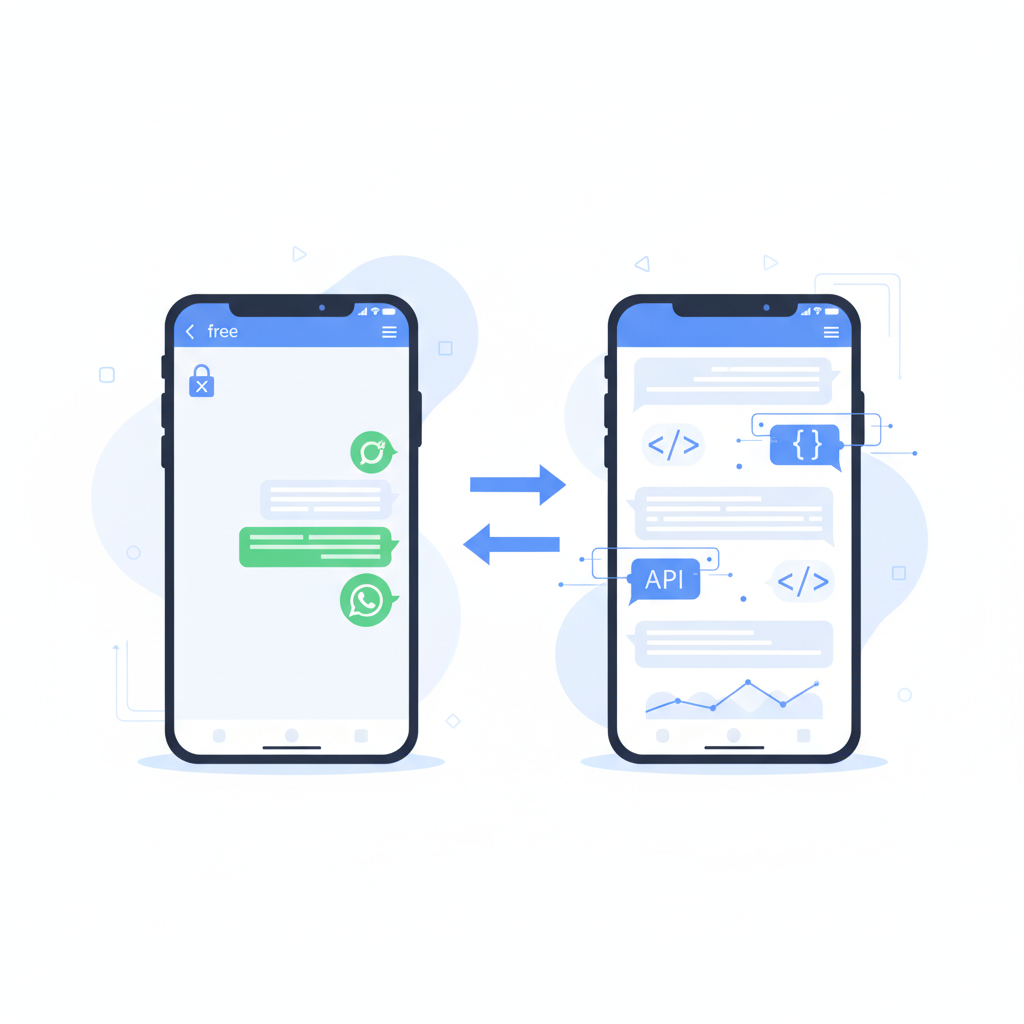
WhatsApp Business vs WhatsApp Business API: Which One Do You Need
Complete comparison between WhatsApp Business (free app) and WhatsApp Business API: features, limitations, costs, and when it makes sense to upgrade.
8 min read -

How to measure WhatsApp Business API ROI (framework + real numbers)
A practical framework for calculating WhatsApp Business API return on investment: costs, savings, revenue attribution, and benchmark data.
9 min read -

WhatsApp for technical support: a practical guide for helpdesk teams
How to use WhatsApp Business API as a technical support channel. Ticket management, SLAs, escalation workflows, and multimedia troubleshooting.
10 min read


Design this bot free — no code
Pick a template, customize it by answering questions, and test it in a live WhatsApp preview. No account, no card.

